

Getting Started
First Launch
Configure PnlTracker after installation.
Login
After starting the application, go to http://localhost:3001.
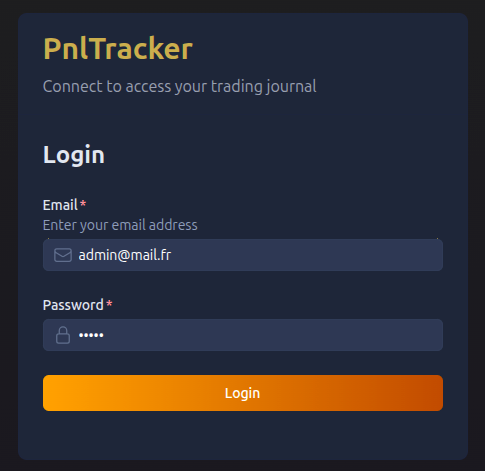
Default credentials
- Email:
admin@mail.fr - Password:
admin
Select a Database
PnlTracker uses PostgreSQL. Each user can have multiple independent databases to separate different strategies or brokers.
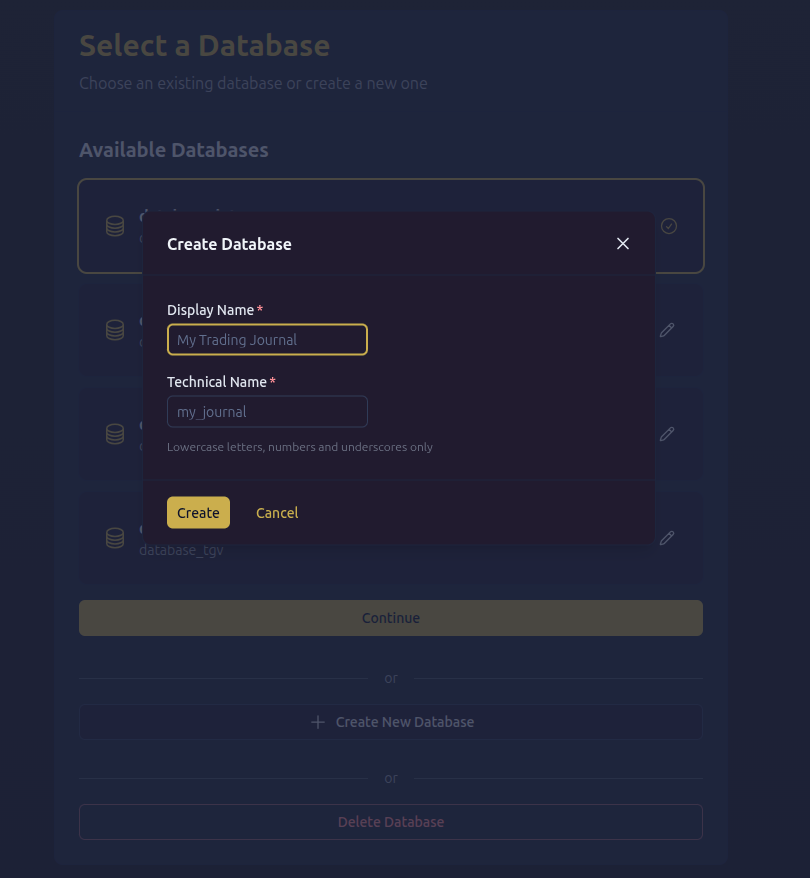
Create your first database
- On the Select a Database page, click "Create new database"
- Give it a name (e.g.:
database_strat1) - The database is created automatically in PostgreSQL, as a new schema.
- Click on the database to access it, then continue.
You can create multiple databases to separate different strategies, brokers, or trading years.
Create a trading account (optional)
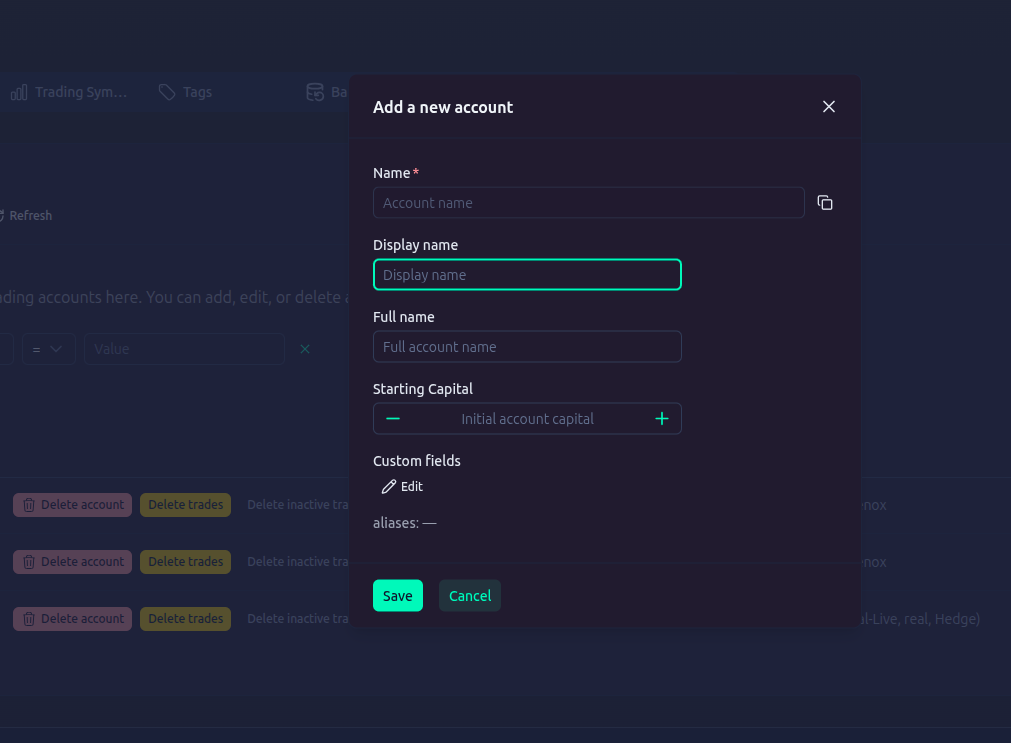
You can import your trades directly — PnlTracker will automatically create the trading account on the fly. If you prefer to configure it manually before import (if you want to manually add trades for example):
Go to Settings → Accounts
- Click "Add account"
- Fill in the fields:
- Name: Unique identifier (e.g.:
MT5-123456, generated automatically) - Display name: Friendly name (e.g.:
Main Account) - Full name: Complete description (optional)
- Starting capital: Initial amount (optional)
- Name: Unique identifier (e.g.:
- Click Save
Starting capital
Starting capital allows you to display your cumulative P&L from your initial capital:
| Configuration | Result on the chart |
|---|---|
| Without capital | The chart starts from 0 |
| With capital (e.g.: $10,000) | The chart starts from $10,000 and displays the total |
Example: Starting capital $10,000 + Cumulative P&L +$2,500 = chart displays $12,500
Next step: Import your trades
To import your trading data, see the Import trades guide. If you don't have a trading account yet, PnlTracker will create it automatically during import.