

File Import
Import your trades from MT5, NinjaTrader, Interactive Brokers, Quantower, or CSV.
PnlTracker uses an import profile system. You create one profile per source (broker or platform), then use it to import your trades.
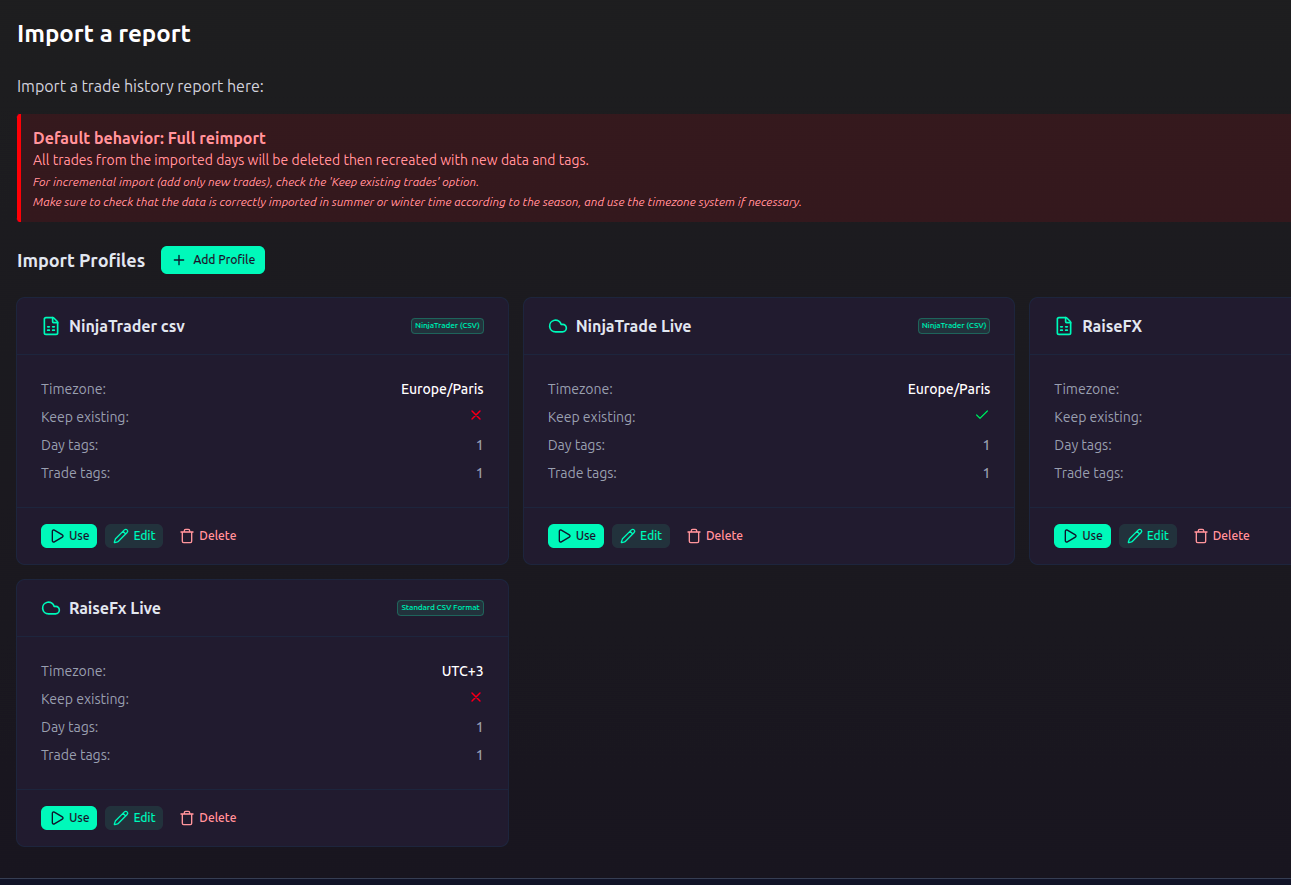
Create an import profile
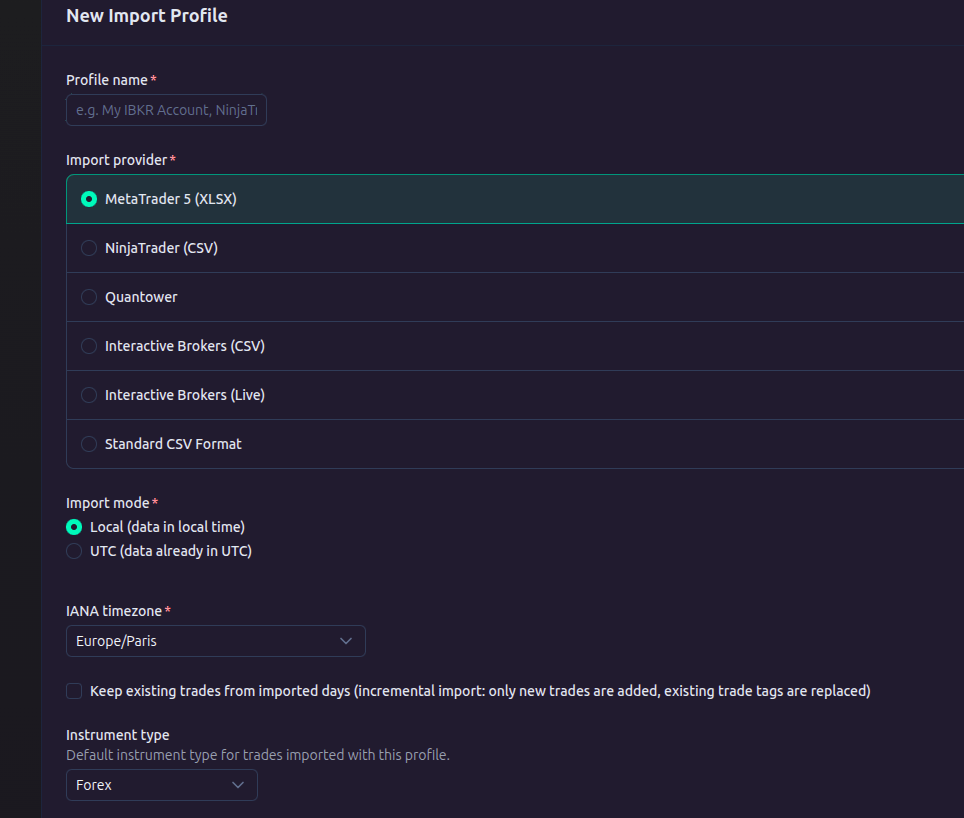
Open the form
On the Import page, click "Add".
Fill in the information
- Name: Profile name (e.g.:
MT5 - Main Account) - Provider: Data source
- Timezone: UTC or Local
- Instrument type: Forex, Futures, Stocks, etc.
- Keep existing trades: Do not overwrite previous imports
- Cloud storage: Store files on an external server — mainly useful if you use an addon or EA (Expert Advisor) for automatic import. The server is configured in Settings → Options → Cloud storage.
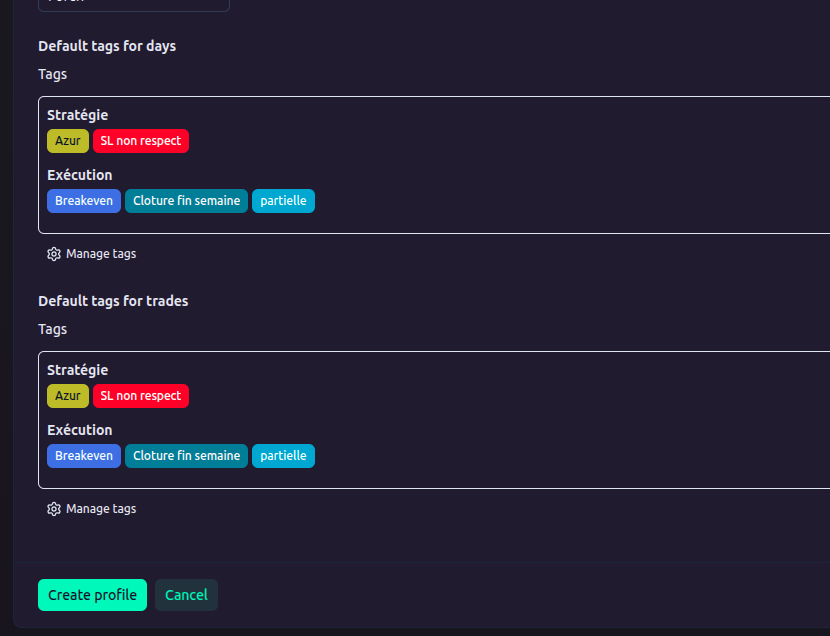
Default tags
You can pre-assign tags:
- Day tags: Applied to all days containing imported trades
- Trade tags: Applied to each imported trade
Supported providers
PnlTracker supports the following platforms:
Import timezone management
These options allow you to reposition hours when dates are not in UTC format (for example if your broker exports with a local timezone). The global display timezone is configured in Settings → Options → Display timezone.
Common issues
- MT5 import fails: Check that the file is in XLSX format (Open XML MS Office Excel 2007)
- IBKR Flex Query timeout: Large reports may take several minutes to generate on IBKR's side
- CSV import fails: Check UTF-8 encoding and ISO 8601 date format